 Mo
Mo Entering vouchers
One screen handles every voucher. Open it from the side menu (Vouchers, key V) and pick the type from the bar at the top, or press its key.
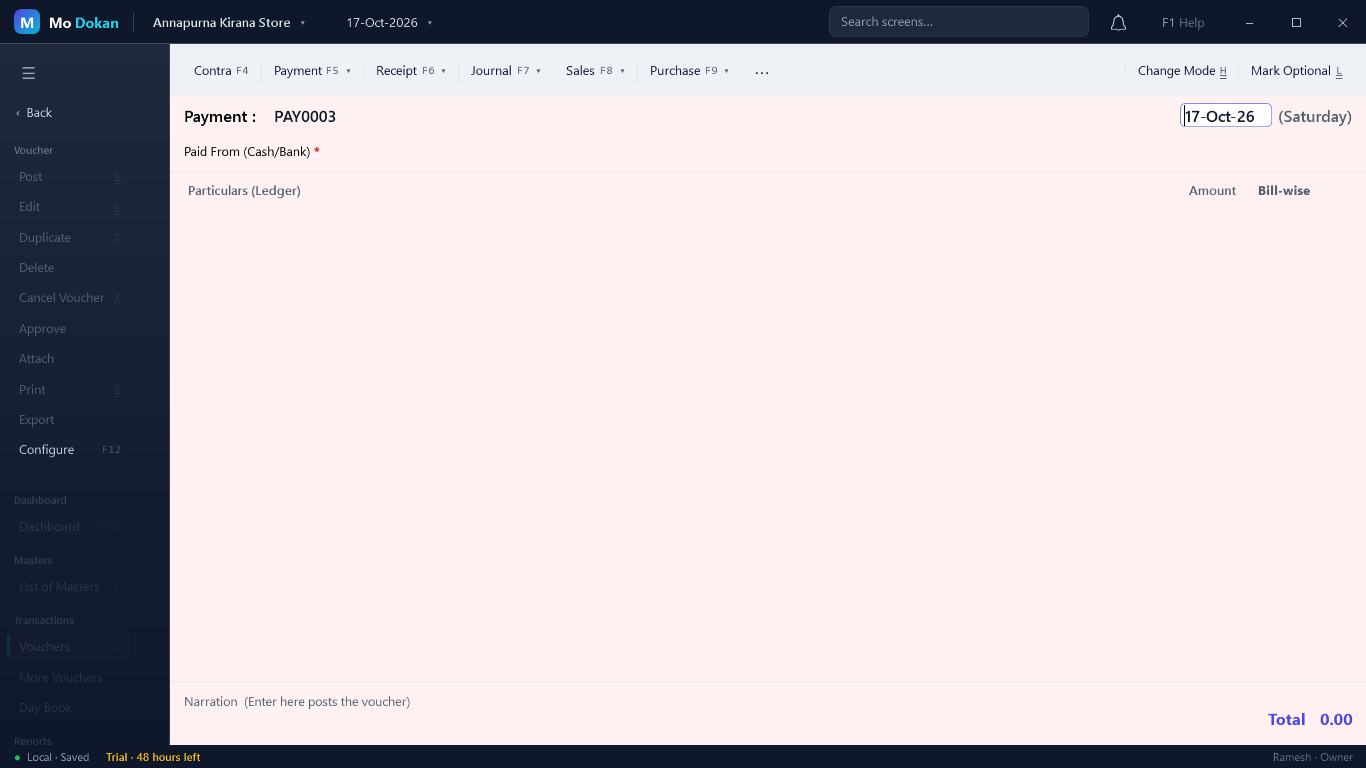
Steps every voucher shares
- Choose the type: F4 Contra, F5 Payment, F6 Receipt, F7 Journal, F8 Sales, F9 Purchase, Ctrl+F8 Credit Note, Ctrl+F9 Debit Note. The ▾ beside a type lists its orders and notes.
- Check the date (see below).
- Fill the lines. Enter moves on; ledger fields show a list as you type.
- Type a narration if you want, then press Enter on the narration — or Ctrl+A anywhere — to save.
After saving, a fresh voucher of the same type opens, dated the same day.
The date
- New vouchers start on the working date shown in the top bar.
- F2 in the date field proposes the next day: Enter accepts it, typing replaces it, Esc puts the old date back.
- Short dates are completed for you: 5 is the 5th of this month, 5-6 is 5 June, 5-6-26 is 5 June 2026.
- The date you accept becomes the working date, so the next voucher opens on it.
The number
Each type numbers its vouchers by itself (PAY0001, RCP0001, SAL0001…). The number shown on a new voucher is the one it will get. How numbering works — prefix, restart each year, manual numbers — is set on the voucher type.
Entry modes (Ctrl+H)
| Mode | For | What you enter |
|---|---|---|
| Single Entry | Payment, Receipt, Contra | The cash or bank account once at the top, then one line per ledger paid or received. Quickest for everyday entries. |
| Double Entry | Payment, Receipt, Contra, Journal | Every line with its own Dr (By) or Cr (To) amount. |
| Item Invoice | Sales, Purchase, notes | The party, then items with quantity and rate. |
| Accounting Invoice | Sales, Purchase, notes | The party, then ledgers and amounts — for services, or bills without stock. |
| As Voucher | Sales, Purchase, notes | Plain debit and credit lines, like a journal, with stock if needed. |
Working with saved vouchers
| To | Do this |
|---|---|
| Look back at earlier vouchers | Page Up / Page Down on the voucher screen. |
| Change a saved voucher | Edit (Ctrl+E), change it, save with Ctrl+A. |
| Copy a voucher | Duplicate (Alt+2): a new voucher filled the same way. |
| Cancel | Cancel Voucher (Alt+X): it keeps its number, shows as cancelled, and has no effect on the books. |
| Delete | Delete: it is removed. Whether later numbers move up is set on the voucher type. |
| Attach a scan or PDF | Attach: bills, receipts, photos — up to 25 MB each. Programs and scripts cannot be attached. |
| Print or export | Print (Ctrl+P) or Export. |
| Choose optional fields | Configure (F12). |
Optional vouchers (Ctrl+L)
Mark Optional saves a voucher outside the books — a quotation, a pro-forma, an entry you are not sure of yet. It shows in the Day Book marked Optional but changes no balance or stock. Make Regular (Ctrl+L again) brings it into the books.
Vouchers that need approval
When a voucher type is set to Vouchers need approval, a voucher entered by a Data Entry user is held — marked “waiting for approval” and kept out of the books — until an Owner or Accountant opens it and clicks Approve.