 Mo
Mo Help › Administration
Users, roles and sign-in
Give each person who works on the books their own user. Mo Dokan then knows who entered or changed each voucher, and each person can do only what their role allows.
Add a user
- Administration → Users (only the Owner sees it).
- Type the Name, choose the Role and click Add User.
- Select the user and click Set Password. A password must be at least 8 characters.
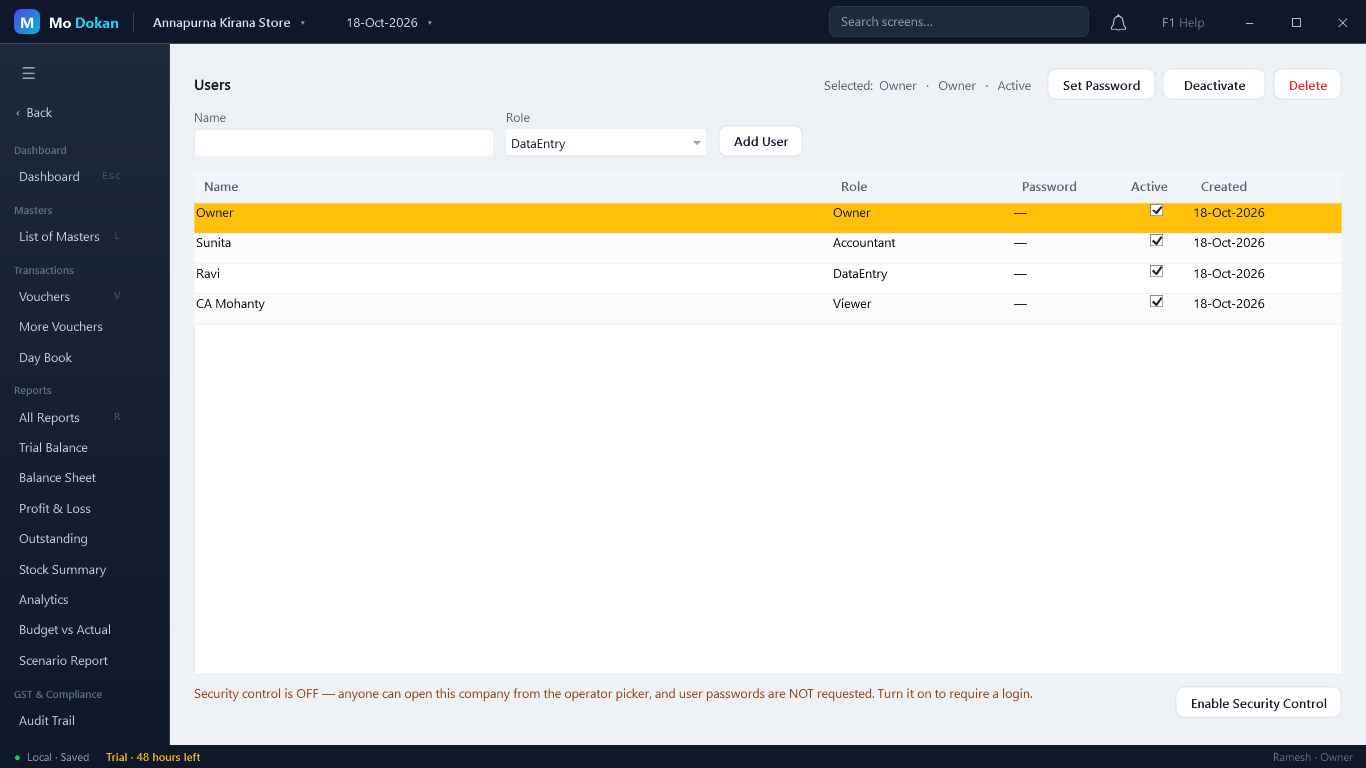
- Deactivate stops a user without losing their name from the history. Activate brings them back.
- Delete removes a user; the Owner can never be deleted.
What each role can do
| Action | Owner | Accountant | Data Entry | Viewer |
|---|---|---|---|---|
| See reports and books | Yes | Yes | Yes | Yes |
| Create and alter masters | Yes | Yes | Yes | No |
| Enter and alter vouchers | Yes | Yes | Yes | No |
| Reconcile the bank | Yes | Yes | Yes | No |
| Yes | Yes | Yes | Yes | |
| Export (PDF, Excel…) | Yes | Yes | No | Yes |
| Cancel or delete vouchers | Yes | Yes | No | No |
| Approve held vouchers | Yes | Yes | No | No |
| e-Invoice, e-Way Bill, GST screens | Yes | Yes | No | No |
| Close the year, change valuation method | Yes | Yes | No | No |
| Branches, financial years, company settings, import | Yes | Yes | No | No |
| Users, Web Access, books freeze, re-open a closed year | Yes | No | No | No |
The side menu shows each user only the screens their role can use. The voucher rules (enter, alter, cancel, delete, approve, close the year, e-Invoice) are checked again when the action is saved, so they cannot be got round.
Require a login (Security Control)
Until Security Control is on, the company opens without asking for a password. To require a user name and password every time:
- On Users, select the Owner (or an Accountant).
- Click Enable Security Control and set that user’s password. It becomes the administrator password.
TipIf you set a password for the Owner or an Accountant while Security Control is off, Mo Dokan offers to turn it on for you.
RuleAfter 5 wrong passwords in a row, that user cannot sign in for 15 minutes.
To turn it off, select the Owner or Accountant, click Disable Security Control and type their password.
CarefulSecurity Control asks who you are when the company opens. It does not encrypt the file. To protect the file itself, also set a data password.
Hold vouchers for approval
You can have vouchers entered by a Data Entry user checked before they reach the books (maker-checker):
- Open the voucher type (List of Masters → Voucher Types) and set Vouchers need approval (entered by Data Entry) to Yes.
- A voucher of that type saved by a Data Entry user is kept but not in the books: the status says waiting for approval.
- The Owner or an Accountant opens More Reports → Pending Approvals, opens the voucher and clicks Approve. Only then does it count in the reports.