 Mo
Mo Help › GST and taxes
Set up GST
Mo Dokan works out GST on your invoices once the company is registered as a Regular GST taxpayer. Until then, invoices carry no GST.
Turn GST on
- When creating the company — or later in Company Settings → Alter Company — set GST registration to Regular, choose the State and type the GSTIN.
- Check the details: press F11, and on GST choose Yes — the GST Details screen opens.
- Give your items their HSN and GST rate, and your customers and suppliers their GSTIN and state (see GST on items and ledgers).
RuleGST is active only for a Regular registration. A Composition dealer cannot charge GST on its bills, and an unregistered business has no GST, so invoices carry none in either case.
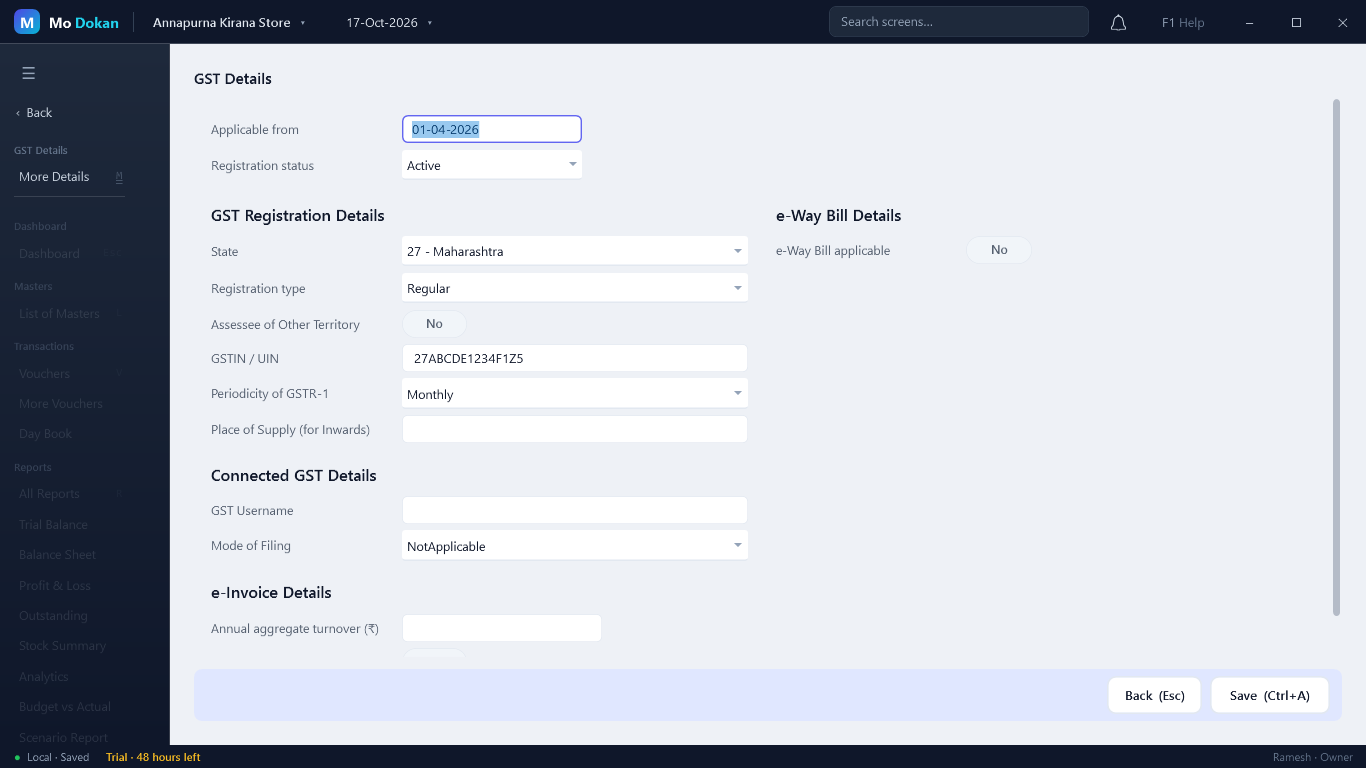
GST Details
| Field | What it is |
|---|---|
| Applicable from, Registration status | From when these details apply. A change of registration is kept as history with its own date. |
| State, Registration type, GSTIN / UIN | Your registration. The GSTIN’s first two digits must match the state. |
| Periodicity of GSTR-1 | Monthly or quarterly filing. |
| Place of Supply (for Inwards) | The state used for purchases when the supplier’s is not given. |
| e-Invoice details | Annual turnover, and whether e-Invoicing applies to you. |
| e-Way Bill details | Whether e-Way Bills apply, and for movement within the state. |
GST Setup: fill many at once
GST & Compliance → GST Setup lists your company GSTIN, then every stock item with its HSN and rate, and every party with its GSTIN — fix them in one place.
Turning GST off
Turning GST off in F11 asks first when GST vouchers exist. Nothing is deleted: existing GST invoices keep their tax, and the GST reports come back when you turn it on again.
RuleA voucher that has GST cannot be altered while GST is turned off — saving it then would remove its tax. Turn GST back on to change it. The same holds for TDS and TCS.