 Mo
Mo Using reports
Every report is built from your vouchers as you enter them, so there is nothing to post or refresh. Change a voucher and every report shows the change.
Open a report
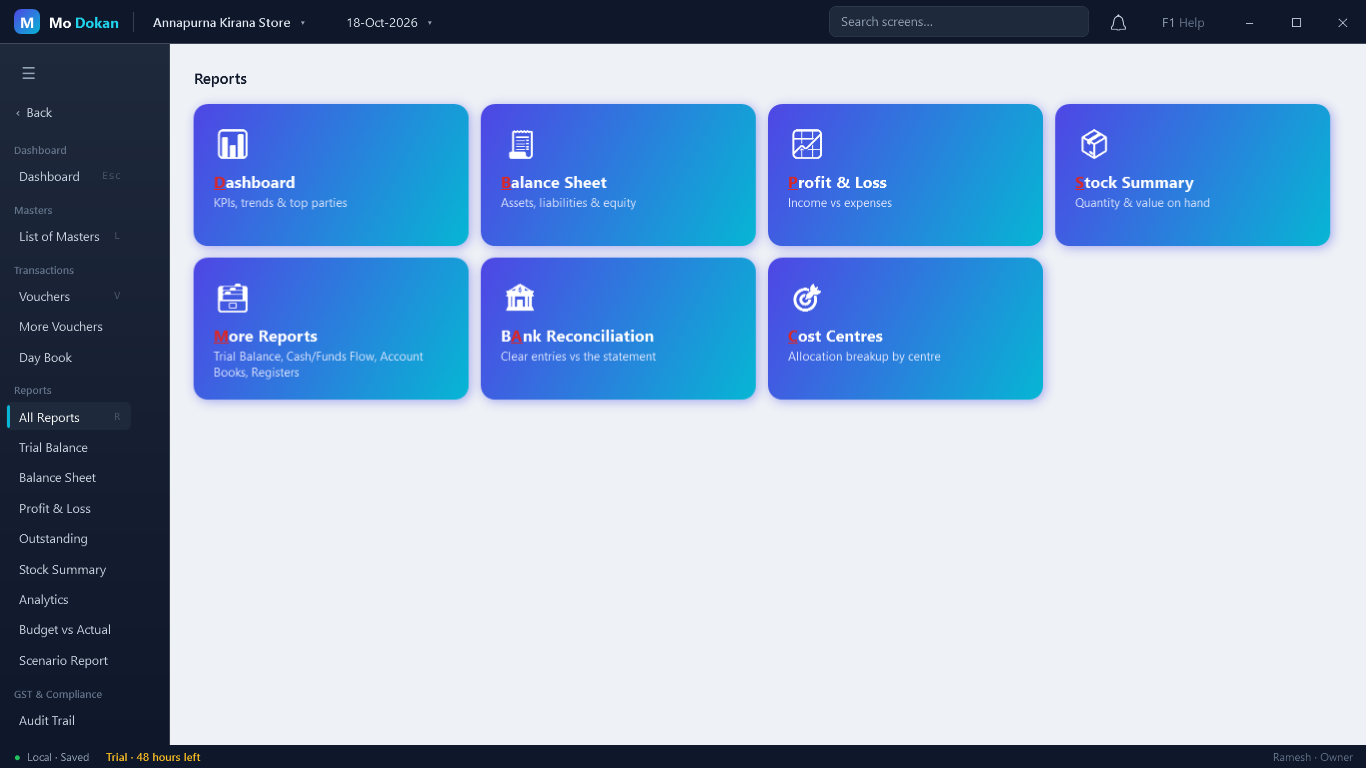
- All Reports (R in the side menu) opens the reports page: Dashboard, Balance Sheet, Profit & Loss, Stock Summary, More Reports, Bank Reconciliation and Cost Centres.
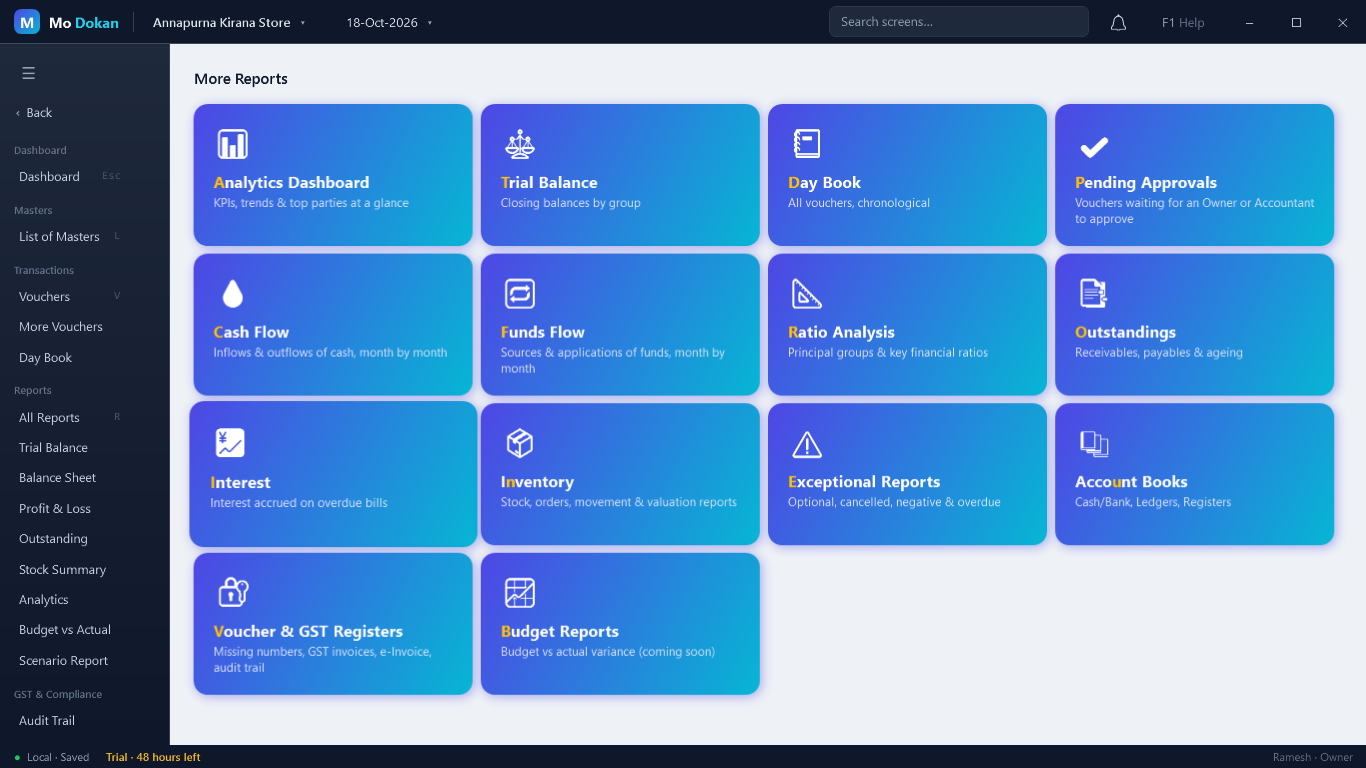
- More Reports holds the rest: Trial Balance, Day Book, Cash and Funds Flow, Ratio Analysis, Outstandings, Interest, Inventory, Exceptional Reports, Account Books, the voucher and GST registers.
- The most used reports (Trial Balance, Balance Sheet, Profit & Loss, Outstanding, Stock Summary) are also in the side menu, one click away.
- Or type the report’s name in Search screens at the top.
Date and period
One date and one period serve every report in the company, shown at the top next to the company name.
| Key | What it changes |
|---|---|
| F2 | The date: reports “as on” a day, such as the Balance Sheet and Trial Balance, show that day. |
| Ctrl+F2 | The period (from and to): reports over a period, such as Profit & Loss, Day Book and ledgers, cover it. |
Change it once and every report follows. A report opened from another one for a single month (for example a month in a ledger’s monthly summary) keeps that month for itself.
Go deeper and come back
- Move with the arrow keys; the amber bar shows where you are.
- Enter (or double-click) opens the line: a group shows its ledgers, a ledger its entries, an entry its voucher.
- Esc goes back one step, to the same line you left.
The menu on the left
While a report is open, the left menu shows only that report’s own actions, with their keys. Most reports have these:
| Action | Key | What it does |
|---|---|---|
| Configure | F12 | Yes / No choices for what the report shows: narrations, percentages, vertical layout, detailed view, columns. Kept for the company. |
| Save View | Ctrl+L | Saves the current choices under a name. |
| Saved Views | Ctrl+H | Switches to a saved view. Delete View removes one. |
| Ctrl+P | Choose Print, Preview or Configure (paper, margins, orientation). | |
| Export… | Ctrl+E | Saves the report as PDF, Excel, CSV, HTML, JSON, XML or plain text (ASCII), to the folder and file name you choose. |
Export settings
In the Export screen, F12 opens the company’s export settings: the default format and folder, whether to open the file afterwards, and whether the company name, address, logo, period and the date and time of export head the file. A CSV file that will open in Excel is made safe, so no cell can run as a formula.