 Mo
Mo First start: trial and licence
The first time Mo Dokan opens it asks how you want to start. Everything works offline: the licence is a small file we email you, made for your computer.
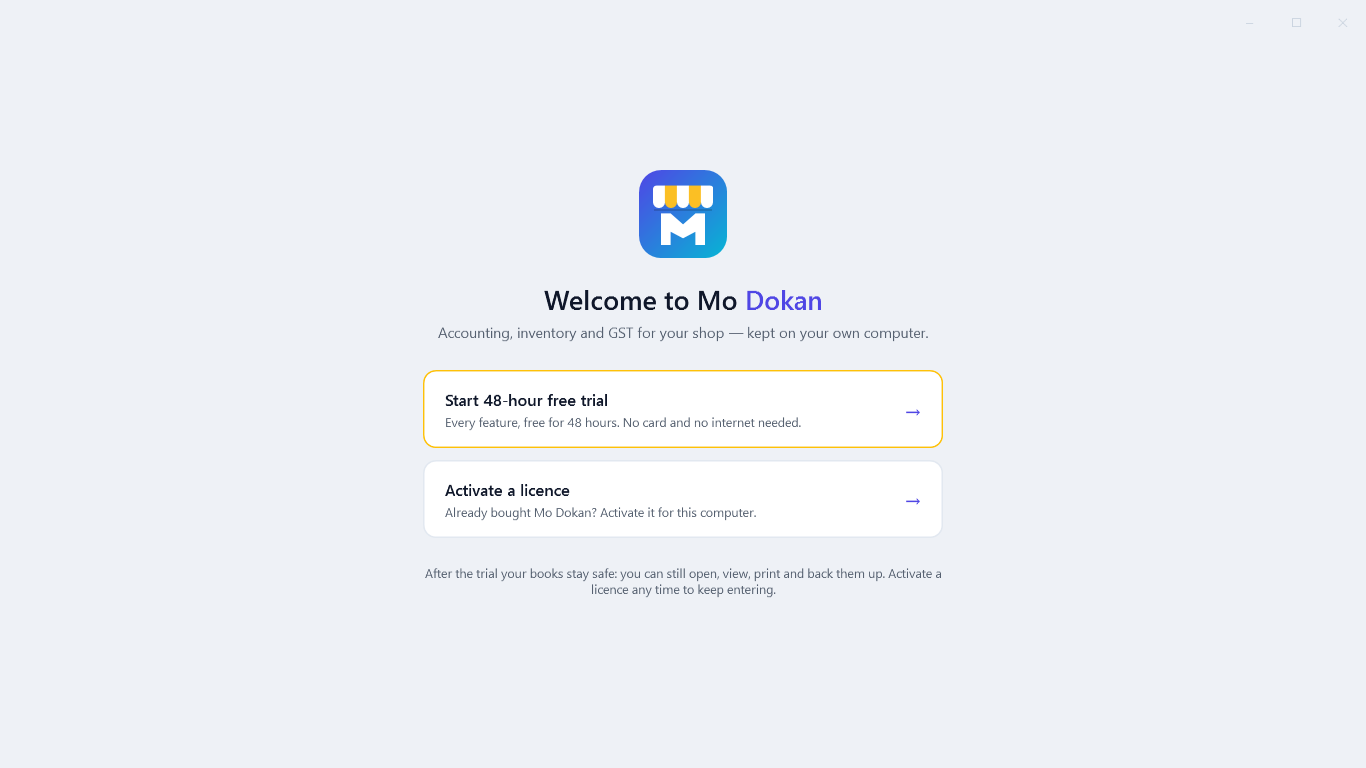
Start the free trial
Click Start 48-hour free trial. Every feature works for 48 hours. The clock starts when you click — installing alone does not start it. The bottom bar of the window shows the hours left; click it any time to open the Licence screen.
When the trial or a licence ends: read-only
Your books are never locked away. In read-only mode:
| Still works | Stops until you activate |
|---|---|
| Opening every company · all reports · printing and export · backup and restore · Web Access | Entering, changing, cancelling or deleting vouchers and orders · creating or altering masters (ledgers, items…) · creating or splitting a company |
Buy a licence
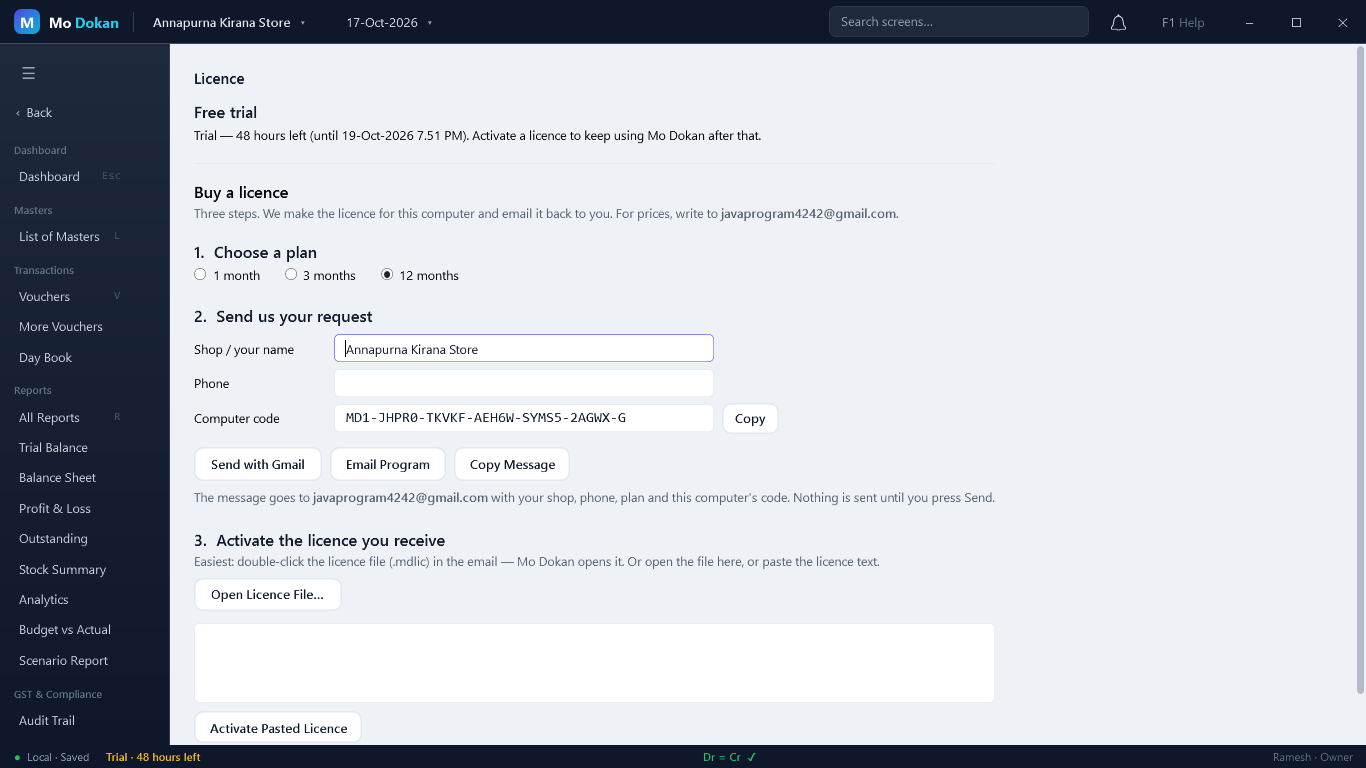
- Open the Licence screen: click the trial notice at the bottom of the window, or Administration → Licence, or Activate a licence on the welcome screen.
- Choose a plan: 1 month, 3 months or 12 months.
- Check Shop / your name and Phone (filled in from your company), then click Send with Gmail. Gmail opens with the email already written to us — press Send. No Gmail? Use Email Program, or Copy Message and paste it into any email.
- We reply with your licence file (it ends in .mdlic).
Activate the licence
- On the same computer, open our email and double-click the licence file. Mo Dokan opens (or comes to the front).
- It shows who the licence is for, the plan and the dates, and asks Activate it on this computer? Click Yes.
- The Licence screen shows Licensed. Read-only ends at once.
Other ways: copy the licence text from our email — the Licence screen then offers Activate It; or click Open Licence File…; or paste the text in the box and click Activate Pasted Licence. Extra words or line breaks around the licence do not matter.
Renew
Before a licence ends, Mo Dokan reminds you, and after it ends it keeps working for a few days of grace. Then it becomes read-only until you renew. The Licence screen is titled Renew your licence; send the request the same way and double-click the new file.
| Plan | Reminder starts | Grace after the end date |
|---|---|---|
| 1 month | 5 days before the end | 3 days |
| 3 months | 10 days before the end | 5 days |
| 12 months | 15 days before the end | 7 days |
Your renewed licence continues from the old end date, so renewing early loses nothing.
New computer, or Windows reinstalled
A licence is for one computer. Changing one part (a new disk, or Windows reinstalled) usually keeps it working. For a different computer, send a request from the new one; we move the licence there. The dates stay the same.
If activation says…
| Message | What to do |
|---|---|
| This licence was made for a different computer | The request was sent from another PC. Send a new request from this one. |
| The licence is damaged | It was cut short when copied. Double-click the attached file instead, or ask us to send it again. |
| This licence ended on … | It is an old licence. Use the newest one from us, or renew. |
| The installed licence starts on … | Check the date on your computer is correct. |