 Mo
Mo Open, back up and restore
The company list is the first screen when Mo Dokan opens. From the top bar, Alt+F3 → Select brings it back any time.
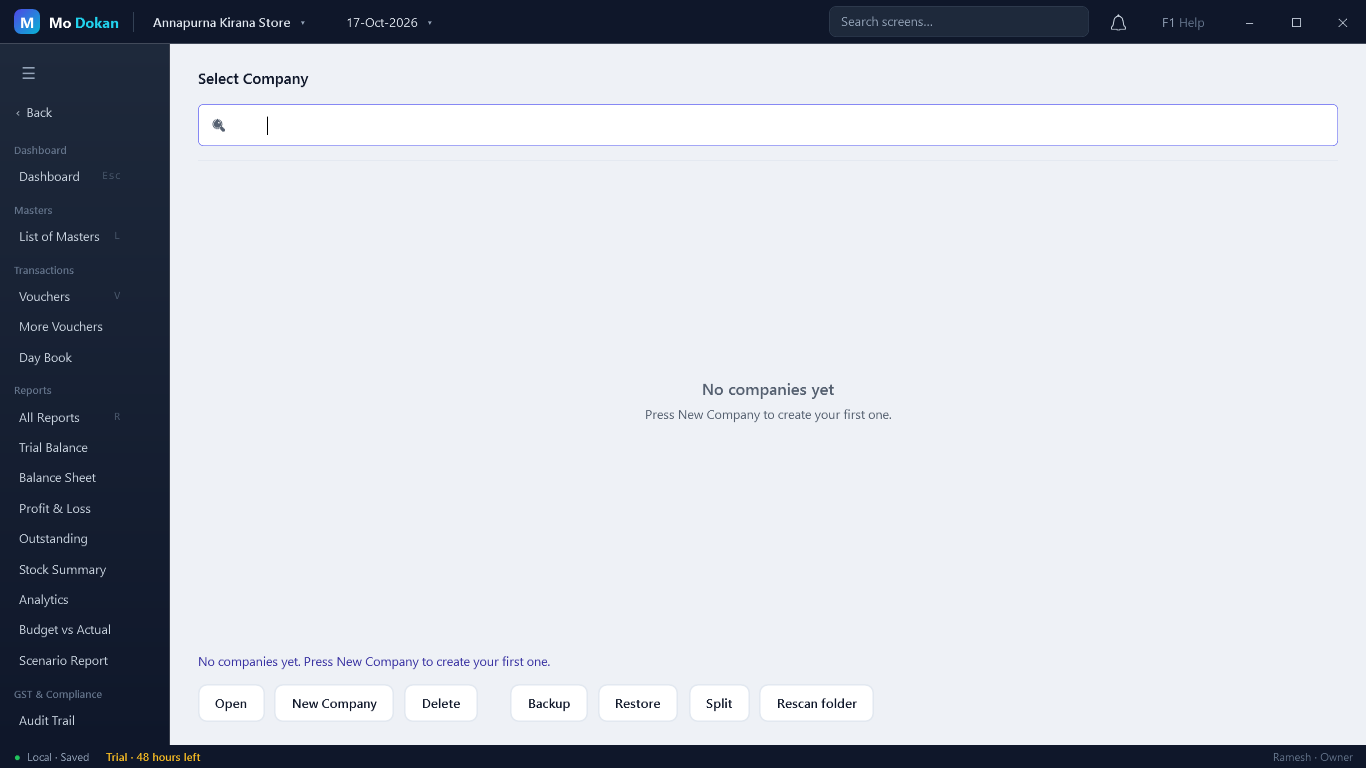
Open a company
Type part of its name in the search box, move with the arrow keys, and press Enter (or click Open). A company with a data password asks for it.
- If Mo Dokan was not closed properly last time (a power cut), it checks the whole company before opening and tells you it is fine.
- If the company is on a network drive, Mo Dokan warns that it will be slow and suggests keeping it on this computer (use Web Access to view it elsewhere).
To work in another company: Alt+F3 → Change. To close the company: Alt+F3 → Shut, or Esc on the dashboard.
Back up
- Select the company and click Backup.
- Choose where to save it — a pen drive or Google Drive folder is best. The file is named after the company and today's date and ends in .mdbak.
Restore
- Click Restore and choose a .mdbak file.
- Mo Dokan shows the company name and when it was backed up, and asks first. A backup of a company with a data password asks for that password.
Split a company by year
When a company has several years of data, Split makes it smaller to work with. Choose the start of a financial year; Mo Dokan keeps the original and creates two new companies: an archive of the earlier years, and a continuing company from that date with the balances carried forward.
Delete
Delete removes the company from the list and moves its data to the Deleted folder. Nothing is permanently erased, so a deleted company can be recovered.
Rescan folder
Looks through the companies folder again — for example after you copied a company folder in by hand.